
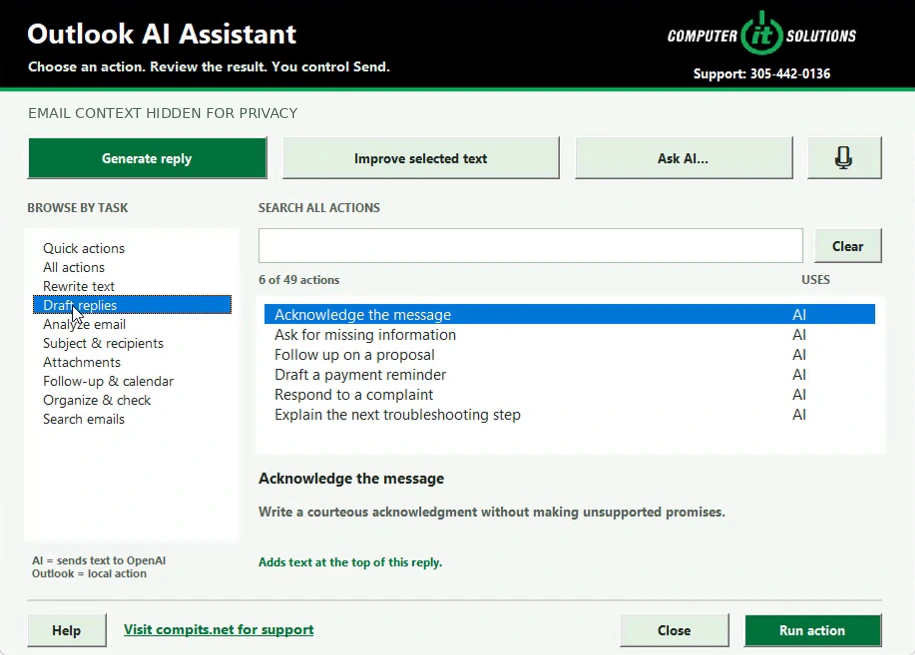
Draft replies
Find a starting point.
Choose from acknowledgments, requests for missing information, proposal follow-ups, payment reminders, and responses to complaints.
AI email assistance · Classic Outlook
A practical collection of writing, translation, and email tools inside the workspace you already use. Presented and supported by Computer IT Solutions.
Your draft. Your review. Your decision to send.
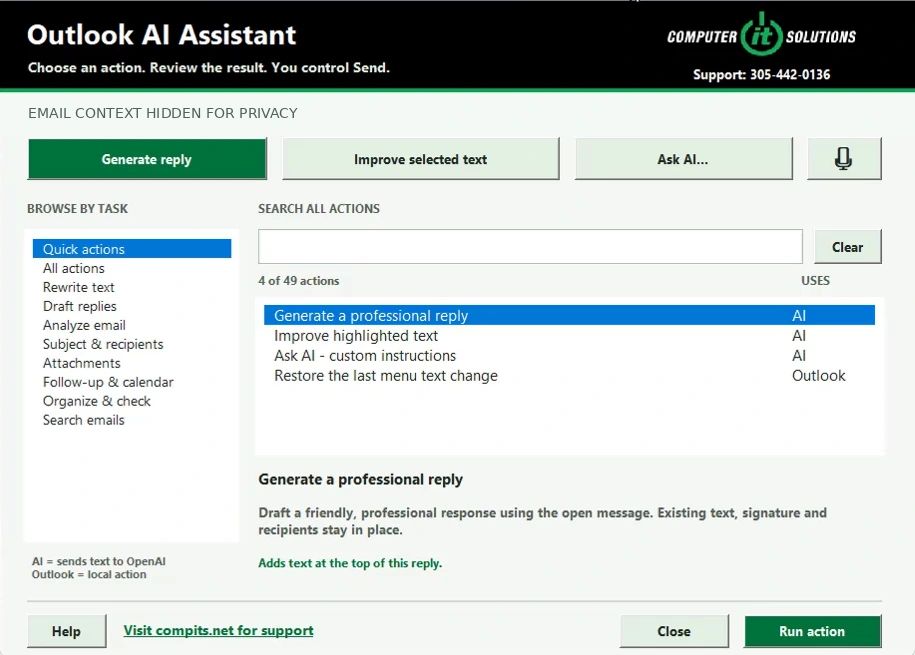
Real footage from the product walkthrough. Email details are hidden.
The walkthrough follows a highlighted passage from Russian into English. The translated wording appears in the same open Outlook reply window.
No separate chat window is shown in that sequence. The menu explains that this action replaces only the highlighted text.
Explore the panel
The walkthrough introduces a menu organized around what you need to do—not technical commands. Here are three groups of available options shown in the recording.
Draft replies
Choose from acknowledgments, requests for missing information, proposal follow-ups, payment reminders, and responses to complaints.
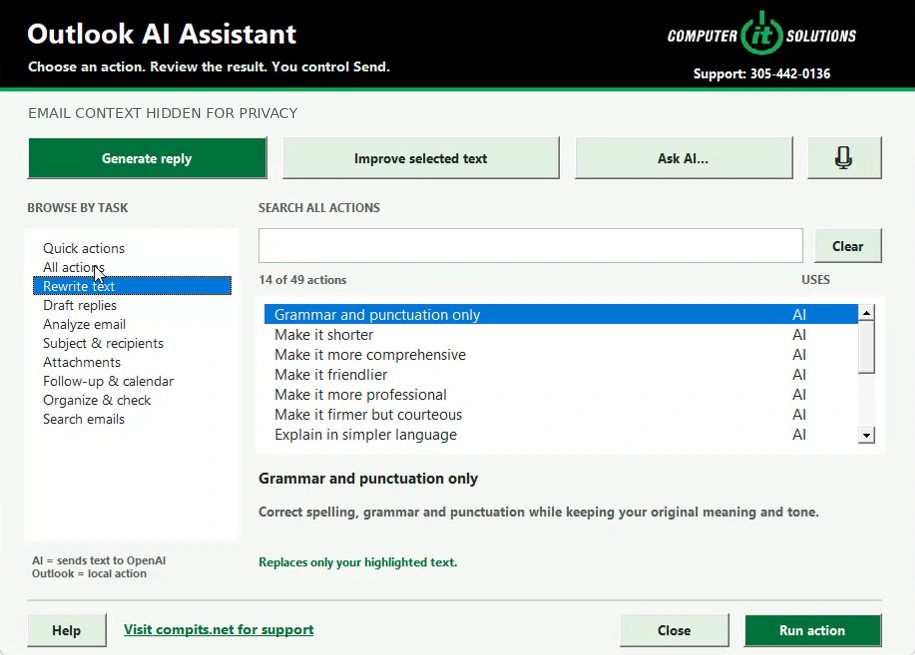
Rewrite text
Options include grammar correction, shorter or more comprehensive wording, a friendlier or more professional tone, and simpler language.
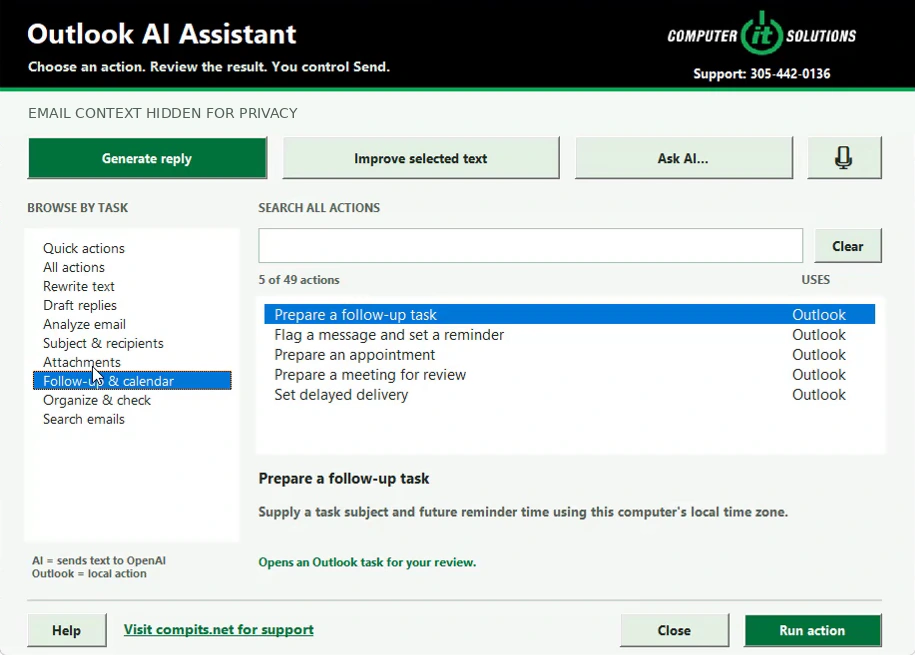
Follow-up & calendar
The panel also lists follow-up tasks, reminders, appointment and meeting preparation, and delayed-delivery settings.
Search by what you need
The search box filters the list as a keyword is entered. In the recording, part of the word “language” narrows the menu to three choices, including translation.
Select an action to read what it will do before running it. The panel also distinguishes AI text actions from local Outlook actions.
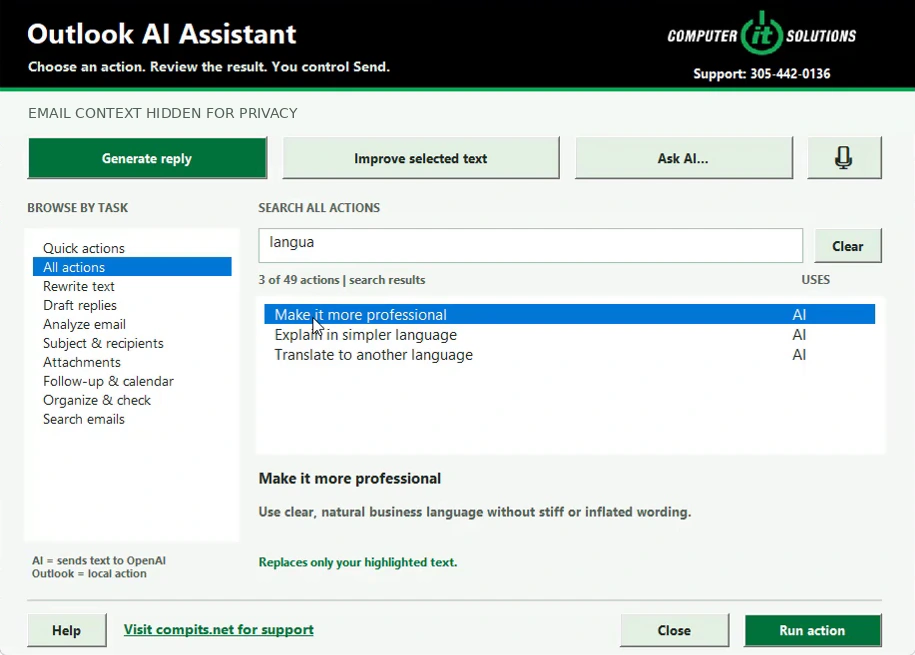
The panel places review at the center of the workflow. Check names, amounts, commitments, translations, and recipient details before sending. AI-generated wording still needs your judgment.
Before you get started
This walkthrough uses classic desktop Outlook on Windows. Contact Computer IT Solutions to check your Outlook version and the setup appropriate for your business before installation.
The panel identifies AI actions as sending text to OpenAI, and Outlook actions as local actions. Use only correspondence your organization permits you to process with an external AI service. Ask about your configuration before using sensitive information.
No. It shows the panel, its categories, keyword filtering, and a completed translation in the same reply window. Other categories appear as menu options. A tailored demonstration can focus on your team's intended workflow.
Call Computer IT Solutions at 305-442-0136 to discuss your Outlook environment, the tools you want to use, and the support arrangement. Pricing and installation scope should be confirmed for your business.
Computer IT Solutions
Talk with us about a demonstration and the right setup for your team.